
How to Connect an MCP Server to ChatGPT
Learn how to connect an MCP Server to ChatGPT to bring real-time, permissioned data into AI workflows. Step-by-step guide for smarter AI outputs.
Published
Before diving into setup, it helps to understand what an MCP server is and why you’d want one connected to ChatGPT in the first place.
For Claude instructions, see here.
What Is an MCP Server?
An MCP (Model Context Protocol) server is a standardized way for ChatGPT to securely connect to external tools, services, and data sources.
Instead of pasting data into a prompt or building custom plugins, MCP lets ChatGPT:
- Discover what tools are available
- Know how to call them safely
- Receive structured responses it can reason over
Think of an MCP server as a bridge between ChatGPT and your existing systems.
What MCP Unlocks for You
Once connected, an MCP server allows ChatGPT to:
- Call real tools: Run searches, fetch analytics, or trigger workflows directly from chat.
- Access live, permissioned data: Work with up-to-date information instead of static context.
- Stay secure and auditable: OAuth-based permissions ensure ChatGPT only accesses what you approve.
- Scale beyond prompts: Replace copy-paste workflows with repeatable, structured actions.
In short, MCP turns ChatGPT from a conversational assistant into an interactive interface for your tools.
Example: Connecting the PeakMetrics MCP Server to ChatGPT
To make this concrete, let’s walk through connecting the PeakMetrics MCP server to ChatGPT.
Note: On Team or Enterprise plans, your organization may restrict custom connectors. An admin may need to enable Developer Mode or allow external MCP servers.
Step 1: Open ChatGPT Settings
- Go to https://chatgpt.com and sign in
- Click your profile icon (bottom-left, typically)
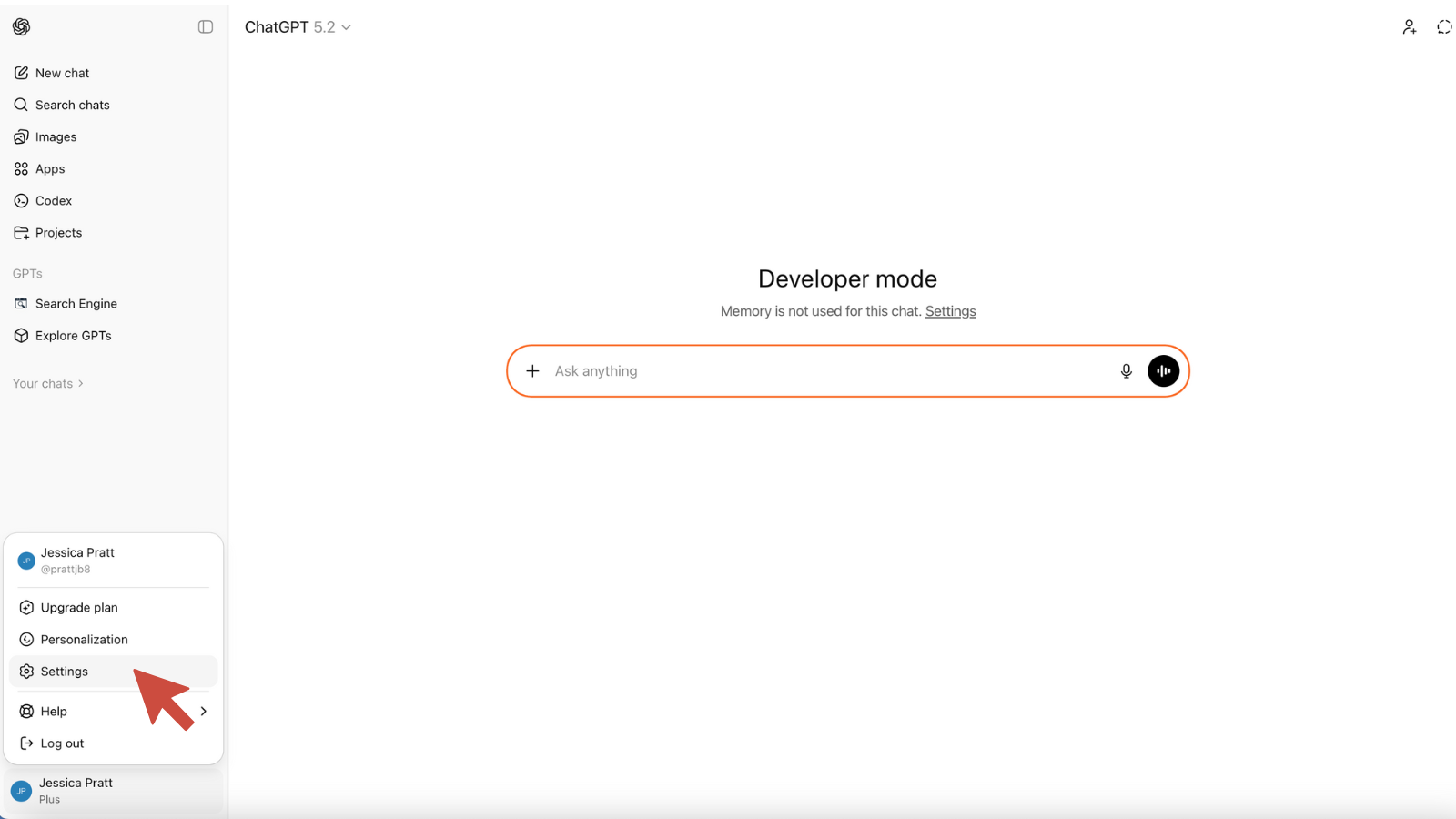
- Select Settings
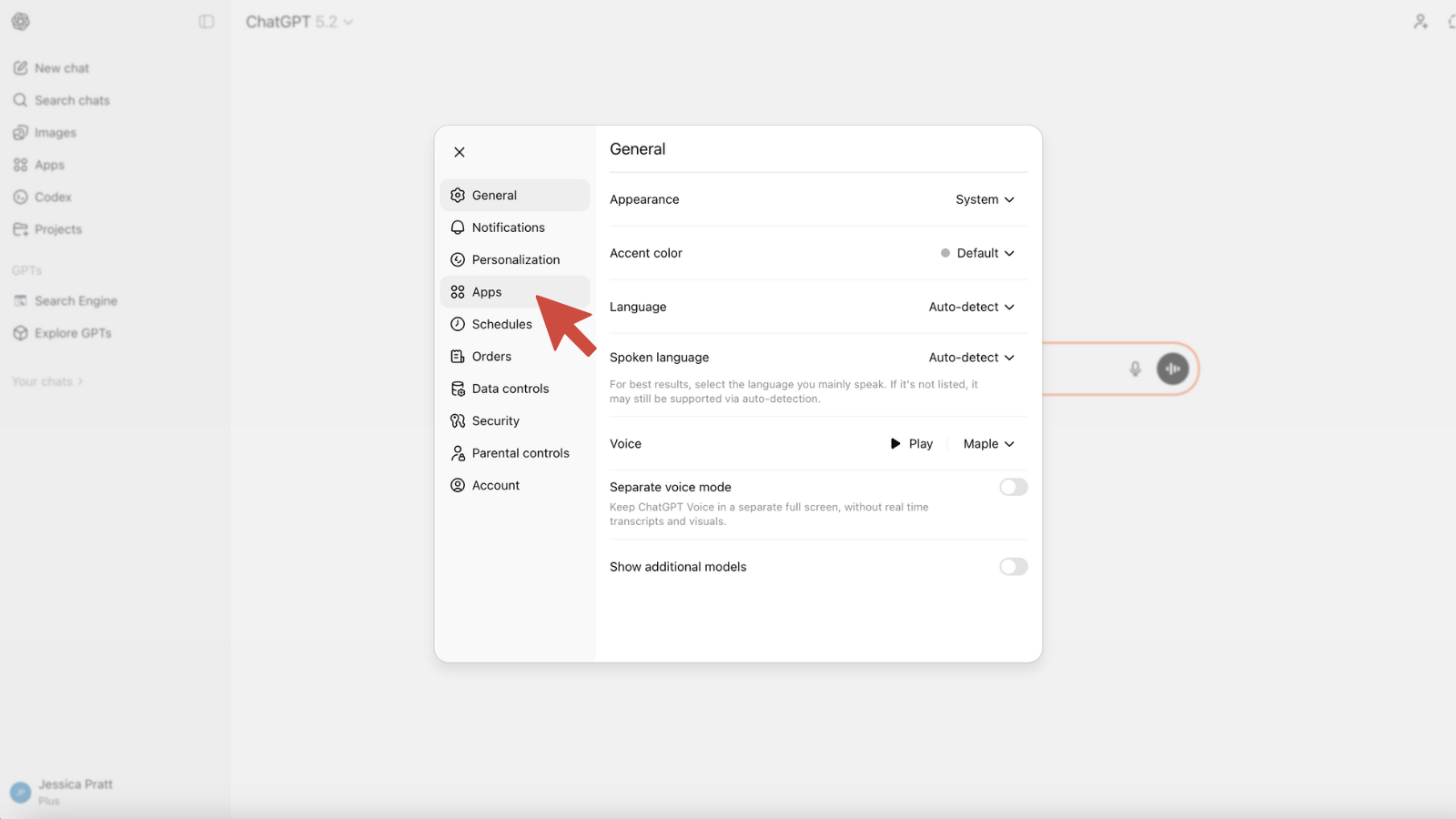
- Navigate to Connectors or Apps
- On Team or Enterprise plans, this may appear under Workspace settings.
Step 2: Add the PeakMetrics MCP Server
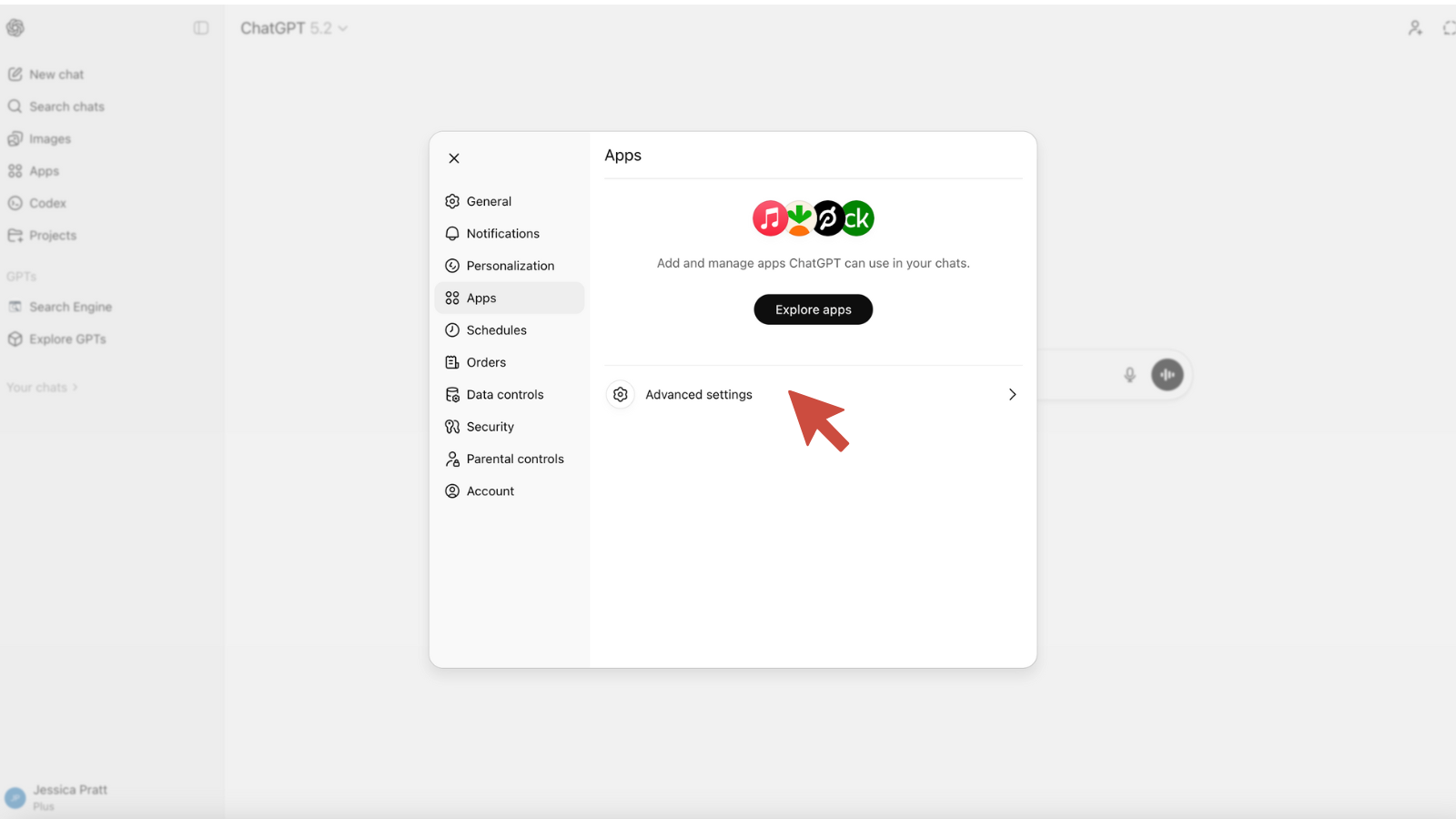
- Click Add Connector (or Create)
- If prompted, enable Developer Mode
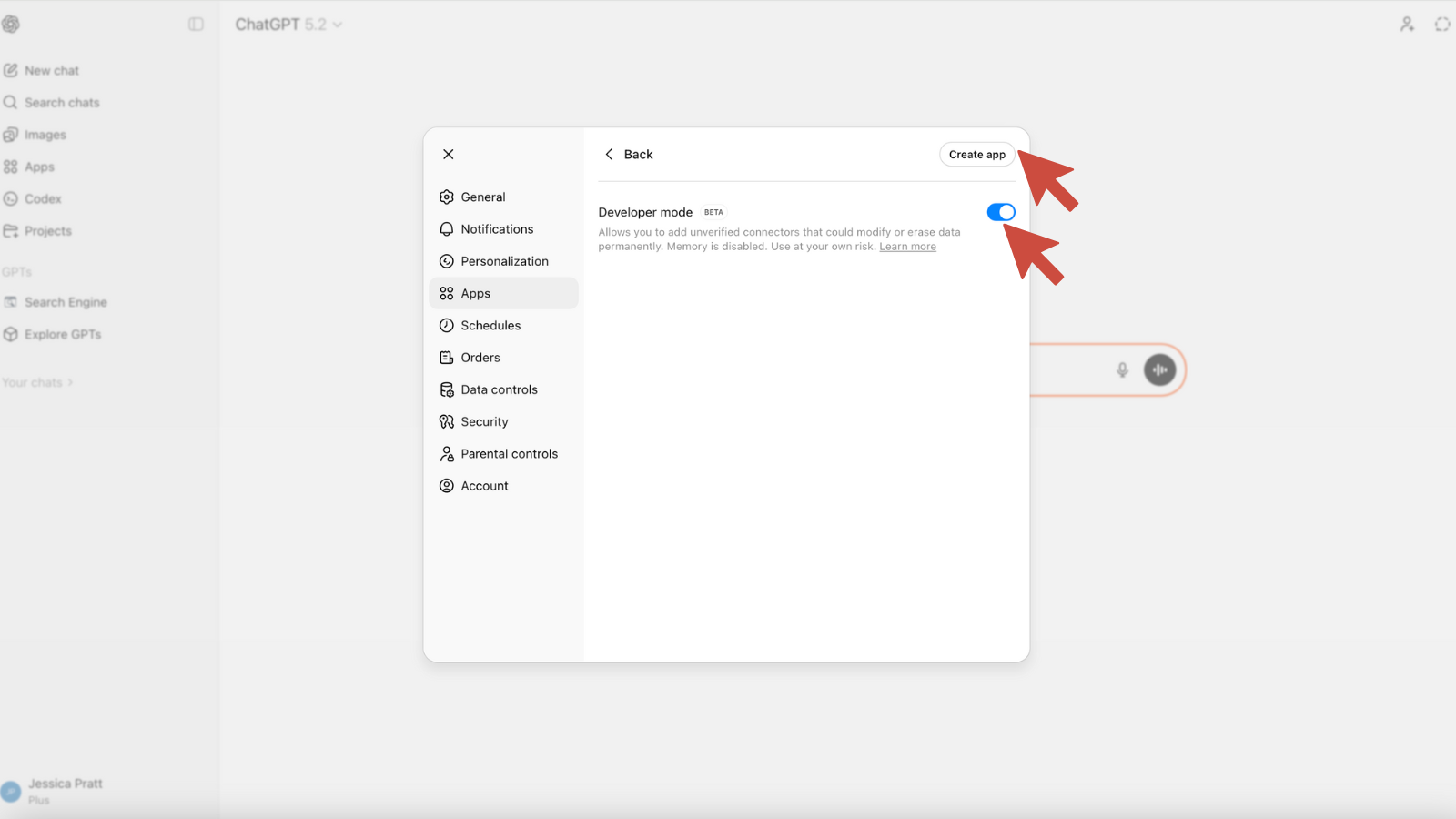
- Choose Create an App
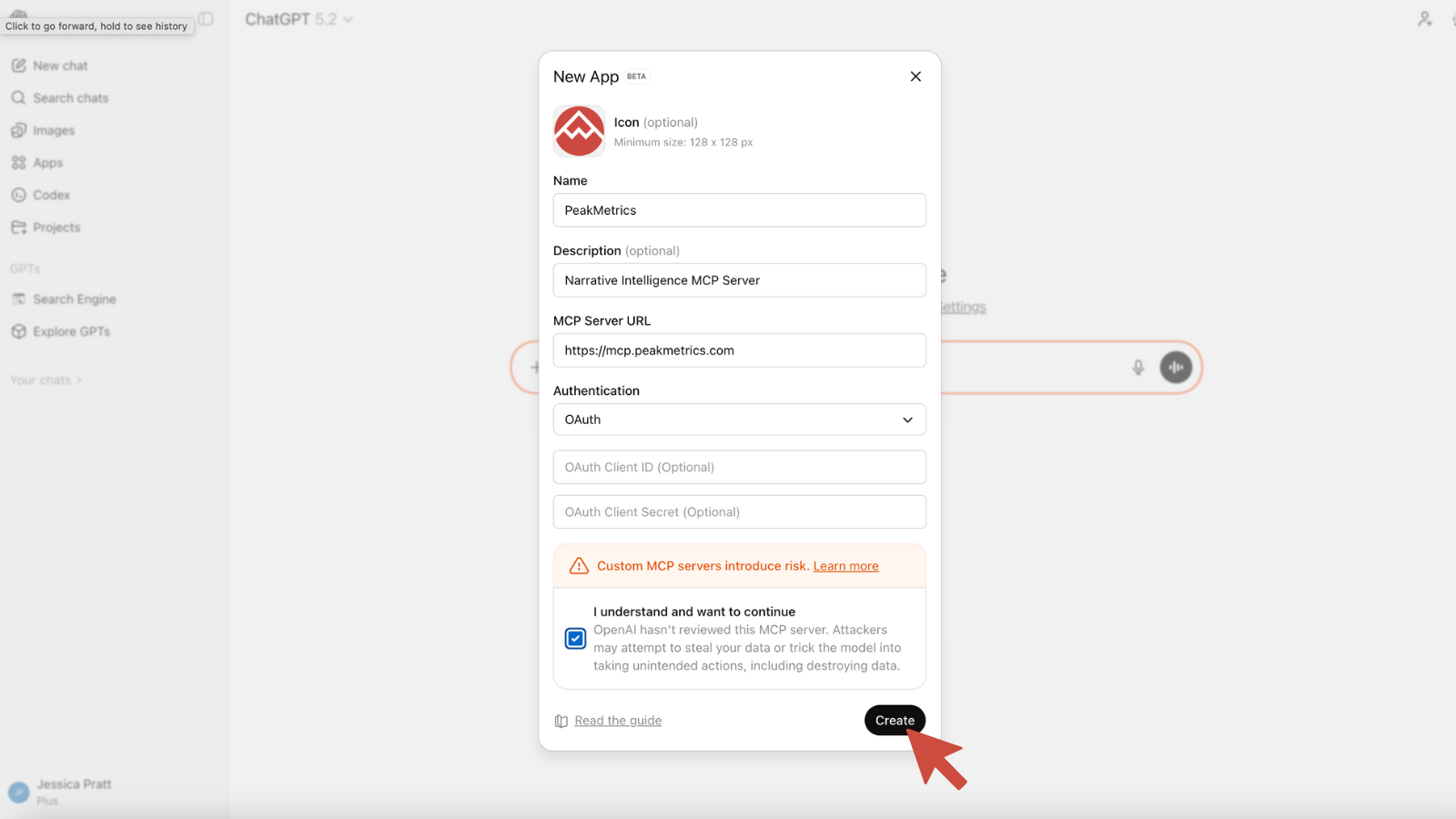
- Enter the following details:
- Server Name: PeakMetrics
- Server URL: https://mcp.peakmetrics.com
- Authentication: OAuth
- Acknowledge that you understand OpenAI has not reviewed this MCP server
- Click Add or Create
- On Team or Enterprise plans, click Publish to make PeakMetrics available to your users.
Step 3: Connect Your PeakMetrics Account
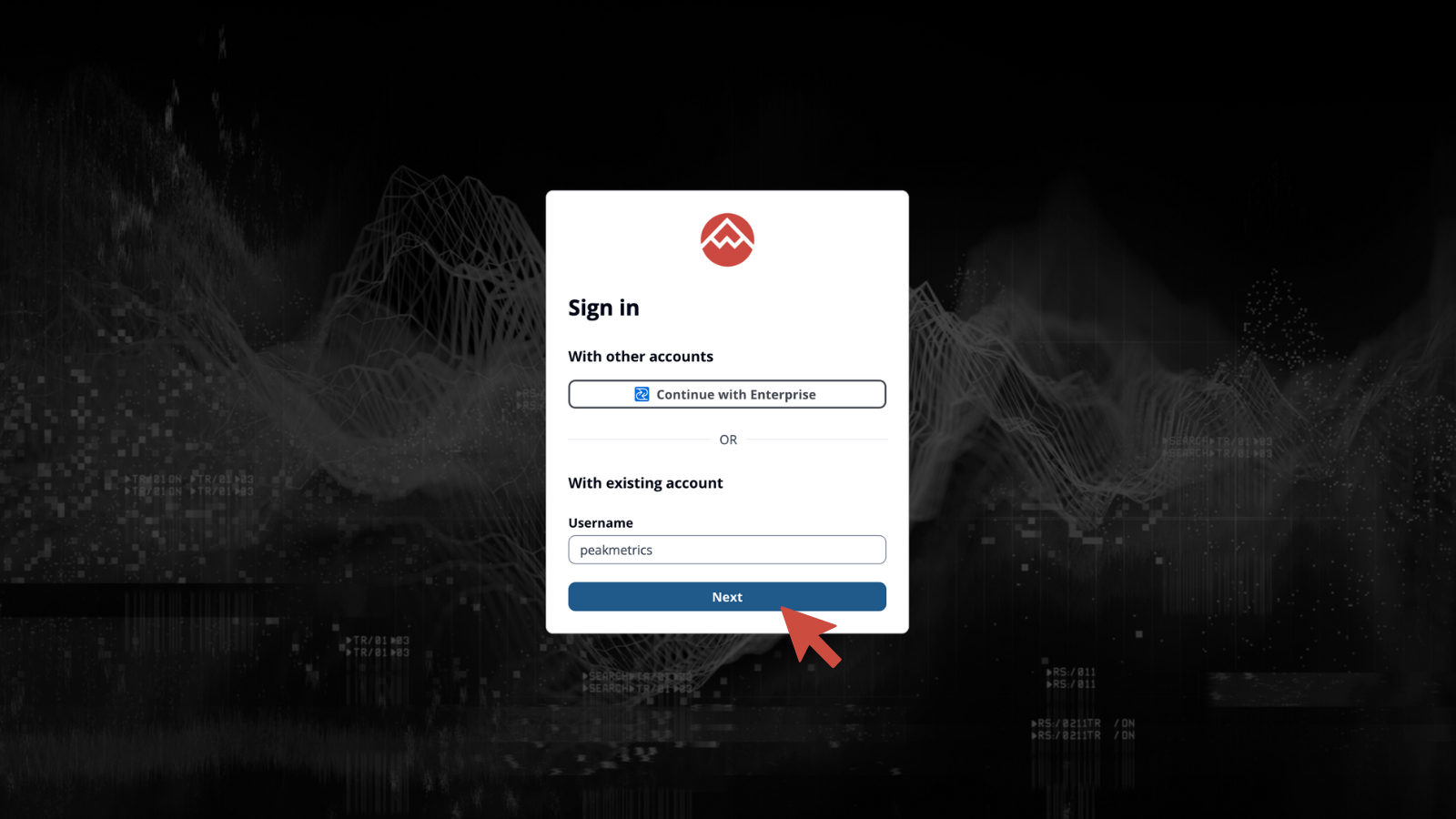
- Open the PeakMetrics connector card
- Click Connect
- You’ll be redirected to PeakMetrics to sign in
- Review and approve the requested permissions
- You’ll be automatically redirected back to ChatGPT
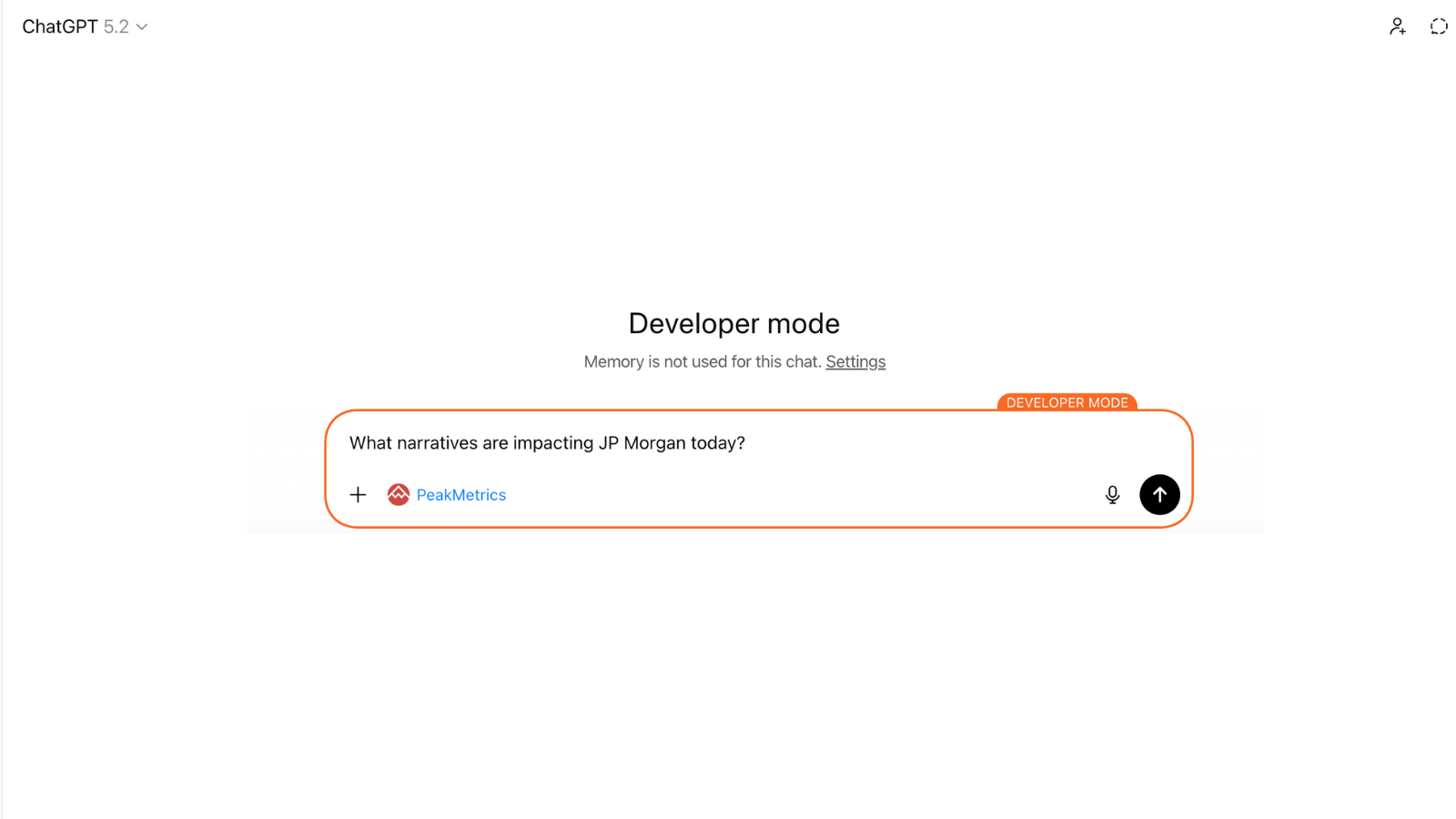
- To use it, start a new chat, click the + button, choose More, and select PeakMetrics.
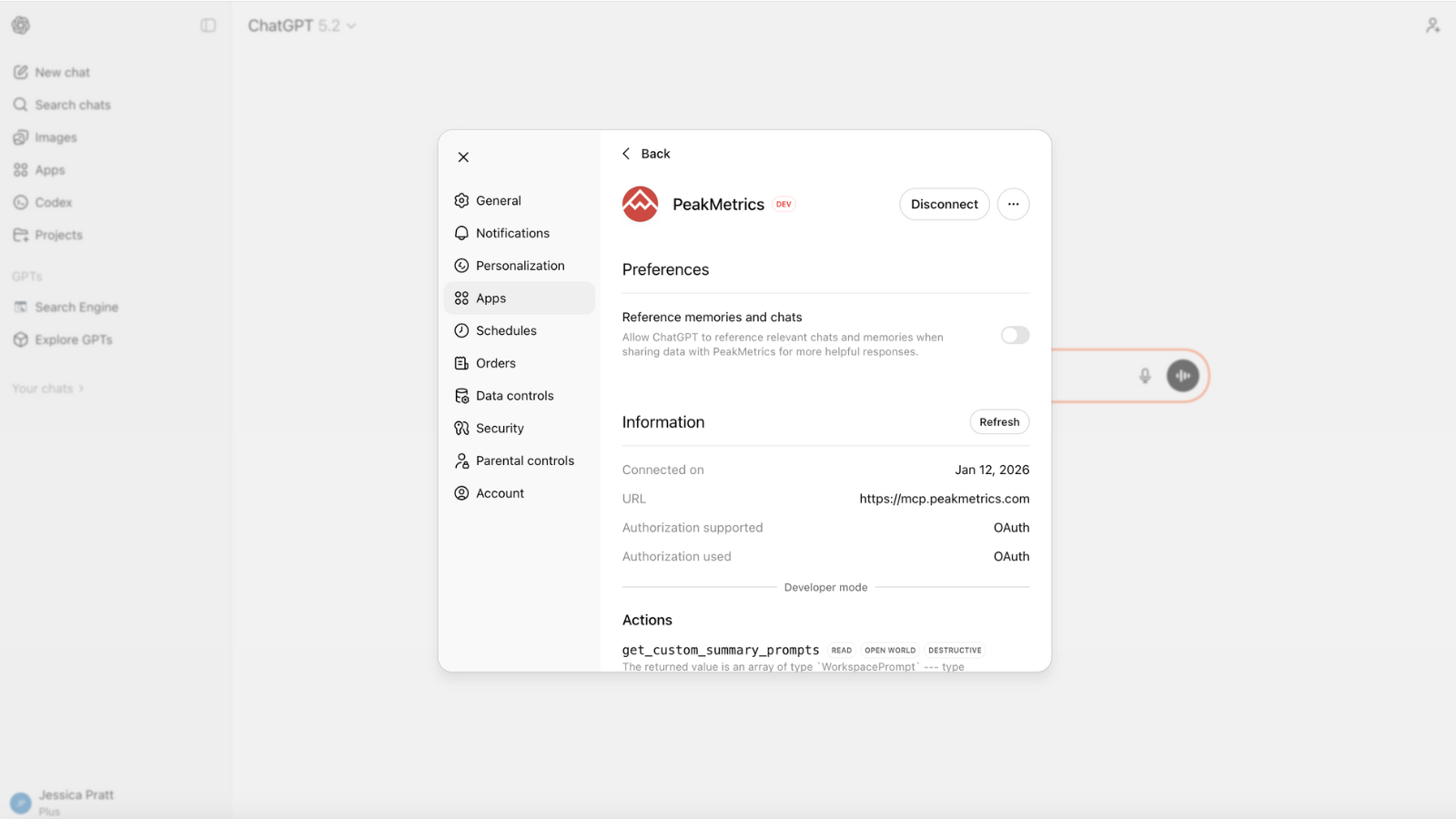
Congratulations, you’re now connected!
Step 4: Refresh When New MCP Versions Are Released
When updates are released to the PeakMetrics MCP server:
- Go to Settings → Connectors / Apps
- Open PeakMetrics
- Click See details under Actions
- Click Refresh
ChatGPT will now use the latest available MCP version.
Final Thoughts
MCP is quickly becoming the standard way to connect AI models to real systems. Once your MCP server is connected, ChatGPT becomes more than a chat interface—it becomes a secure control layer for your data and tools.
Test it out!
Sign up for our newsletter
Get the latest updates and publishings from the PeakMetrics investigations team.
Loading the newsletter sign-up form…